

Overview
Everyone in your workspace gets alert emails unless they opt out. You can also send a copy to a Slack channel, a Microsoft Teams channel, or any email address, post events to Slack through a webhook, or page a PagerDuty service. Pick a channel below to set it up.Slack (channel email)
Slack (webhook)
Microsoft Teams
PagerDuty
Slack
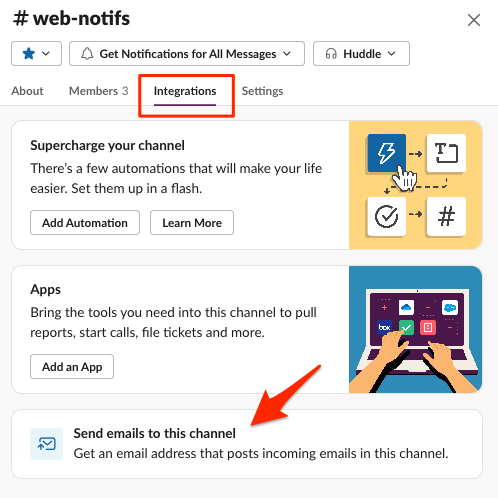
To configure Slack, you will first need to generate an email address for your Slack channel. Alerts arrive in the channel as emails. For formatted Slack messages about the events you choose, use a Slack webhook instead. What you’ll need:- A paid Slack plan, with channel email addresses allowed by your Slack admin. If you don’t see Send emails to this channel, use a Slack webhook.
- Open Slack and find or create the channel you want the notifications to be sent to
- Click View channel details > Integrations > Send emails to this channel
- Copy the email address and go to your company settings in Artie
- Under Additional alert emails, paste the address and click Add email. Click Send test email first if you want to check that it arrives.
Screenshots
Screenshots
Slack webhook
A Slack webhook posts a formatted message to one channel each time an event you subscribe to happens, such as a replication error, a finished backfill, or a schema change. See webhooks for the full list of events. What you’ll need:- Permission to install apps in your Slack workspace. If your workspace only lets admins install apps, Slack shows a request button instead, and a Workspace Owner or Admin has to approve the request before you get a webhook URL.
- Go to api.slack.com/apps and click Create New App > From scratch.
- Enter a name such as
Artie alerts, pick your workspace, and click Create App. You don’t need to set any scopes or bot settings. - In the left menu, click Incoming Webhooks and turn on Activate Incoming Webhooks.
- Click Add New Webhook, pick the channel, and click Allow.
- Copy the Webhook URL. It starts with
https://hooks.slack.com/services/. - In Artie, go to Monitors > Webhooks and click New webhook.
- Enter a Name, such as
Slack alerts, and paste the URL into Webhook URL. Format switches to Slack. - Pick the events you want and click Save.
- Click the webhook in the list to open its delivery logs, then click Send test and check that the message shows up in the channel.
Microsoft Teams
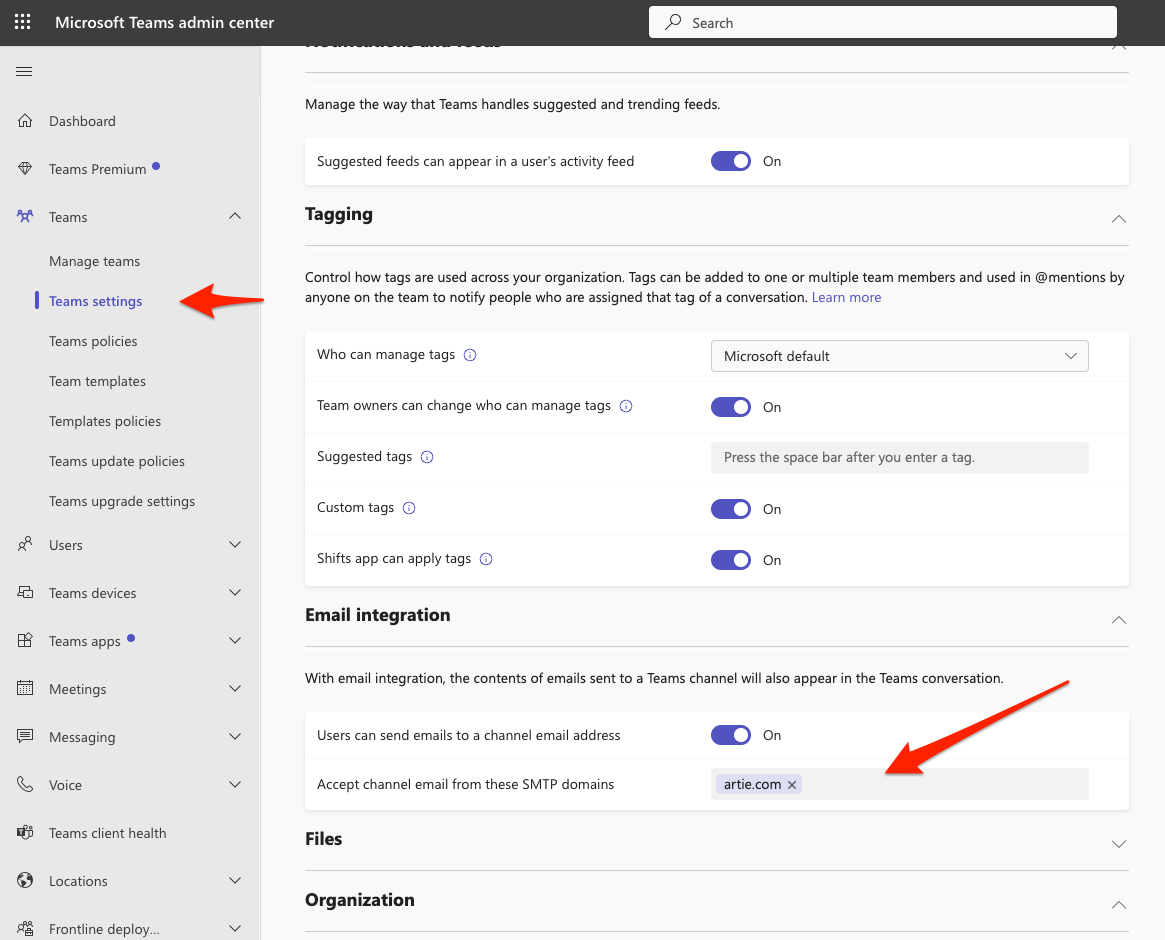
To configure Microsoft Teams, follow these steps: Steps to set up Microsoft Teams notifications:- Allow
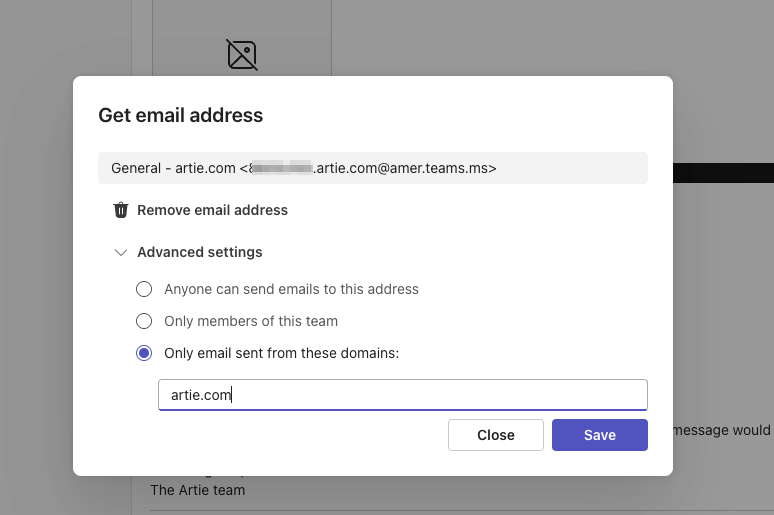
artie.comas an accepted SMTP domain (this setting is available in the Microsoft Teams admin center) - Click on … next to the channel and select Get email address
- Open the advanced settings and confirm that
artie.comis selected as the allowed domain or anyone can send emails to this address - Go to your company settings in Artie
- Under Additional alert emails, paste the address and click Add email. Click Send test email first if you want to check that it arrives.
Screenshots
Screenshots
- Go to your company settings in Artie
- Under Additional alert emails, enter an address and click Add email.
- Repeat for each address.
- To keep table change and auto-replication emails out of these inboxes, check Don’t send table change or auto-replication emails to these addresses.