

What you’ll need
- To be a company admin, signed in with a work email.
- A card on file, if your company doesn’t pay Artie yet. You can add one during setup.
- The IP ranges your apps connect from, in CIDR form, for example
203.0.113.4/32.
Setup
1
Create a new cluster
In the Artie Dashboard, go to Kafka, click Add a cluster, and choose Create a new cluster.Setup saves as you go, so you can leave and come back to it.
2
Name and size
Tiered storage is on by default. Kafka keeps each message for its topic’s retention. With tiered storage, only the newest messages stay on broker disks, and every message is also copied to S3, which costs far less than disk. Consumers read recent messages from disk at full speed and older ones from S3, a little slower. Click Customize to change:
- Keep on broker disks: how many days of messages stay on broker disks, from 1 to 14. Defaults to 3. Older messages are removed from the disks but stay in S3 until the topic’s retention ends. For example, with 3 days on disk and 7 days of retention, the last 3 days are on disk and in S3, and days 4 to 7 are only in S3.
- Disk cap per partition: an optional size limit, in GiB. Once a partition holds this much on disk, Kafka removes its oldest messages from the disk, even if they’re newer than the days above. They stay in S3. Leave it empty for no cap.
- Grow when a disk reaches: when the fullest broker’s disk is this full, Artie grows every broker’s disk. Defaults to 65%.
- Grow until disks are about: how full the fullest disk is after it grows, which sets how much room each growth adds. Defaults to 55%, and must be below the first value. For example, a 100 GiB disk holding 65 GiB grows to about 120 GiB, so it’s about 55% full.
- Never grow past: the largest a broker’s disk can get, in GiB. Defaults to no limit.
3
Network access
Restrict access by IP is on by default. Under Allowed IP ranges, enter one IPv4 CIDR per line, or separate them with commas.Artie rejects IPv6 ranges, ranges without a
/ size, /0, ranges that don’t start at their first address, and duplicates.4
Review and create
Check the cluster, network access, and estimated monthly cost, then click Create cluster.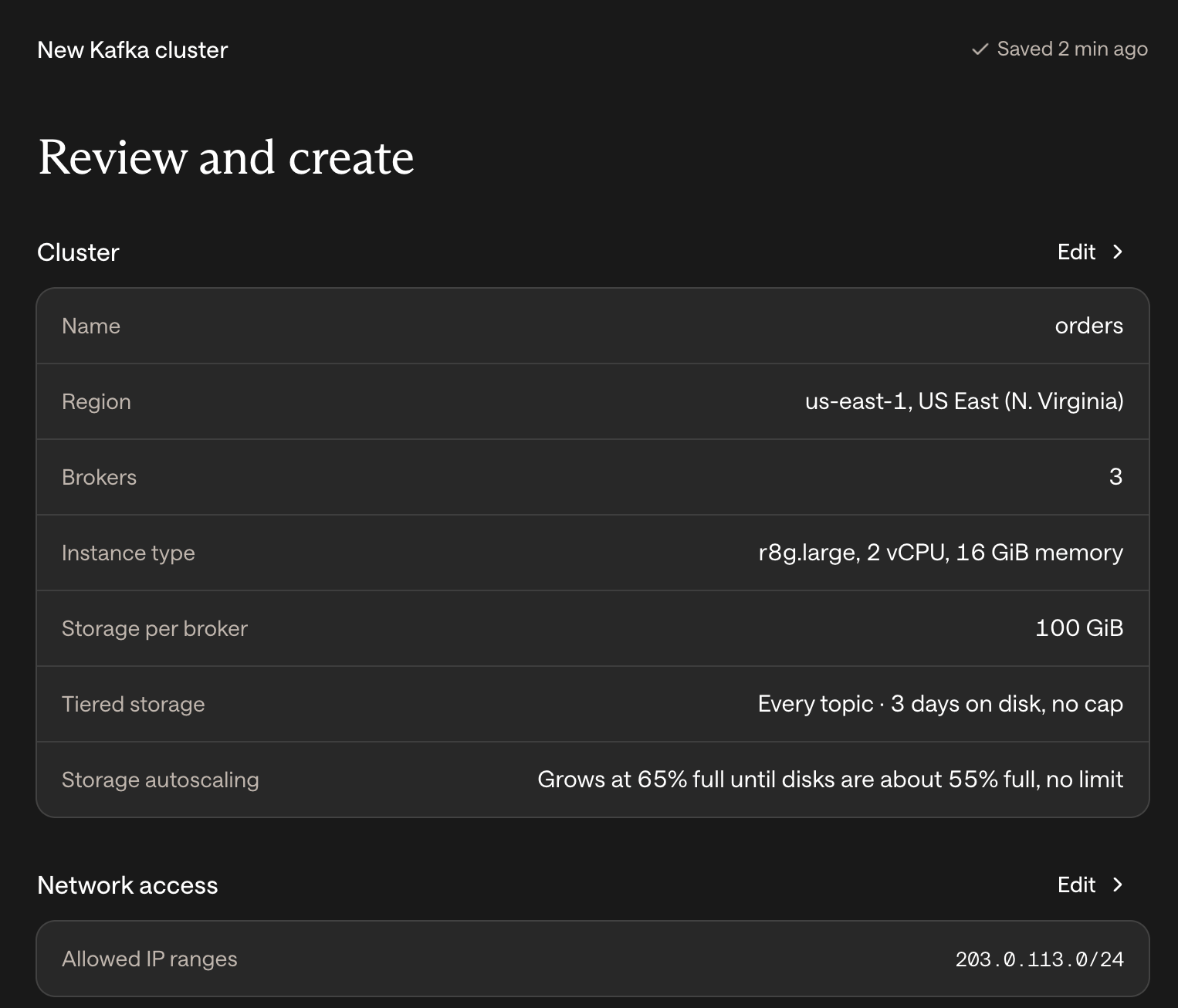
After you create the cluster
Starting the brokers usually takes 6 to 7 minutes. You can leave the page. The cluster moves through these steps:- Creating the cluster’s resources
- Issuing the TLS certificate
- Starting a machine for each broker
- Starting the Kafka brokers
- Ready
Advanced
What if the cluster doesn't deploy?
What if the cluster doesn't deploy?
If a step fails, or the cluster is still starting after 20 minutes, click Try again on the setup page or Retry on the cluster’s page. Our team is notified when a deploy fails. If that doesn’t fix it, click Talk to us or Contact us.